Set up AIMsi for a tax-free weekend
When to use this procedure
Follow the steps below to adjust your tax rate and tax authority for tax-free weekends or similar sales events.
Steps to complete
Add a unique tax-free tax authority. Skip to the end for alternative steps.
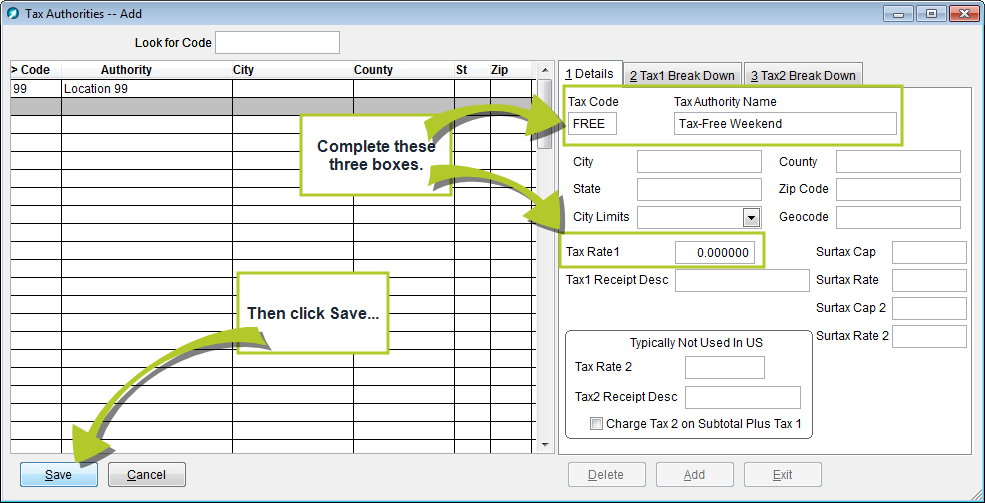
- On the Maintenance menu, point to General Maintenance and click Tax Authorities. The Tax Authorities window displays.
- Click Add.
- Enter a Tax Code (up to 5 alpha-numeric characters) for your new tax-free tax authority, such as FREE.
- Enter a Name (up to 25 alpha-numeric characters) for you tax authority, such as Tax-Free Weekend.
- Enter 0.00 in the Tax Rate 1 box.
- Click Save.
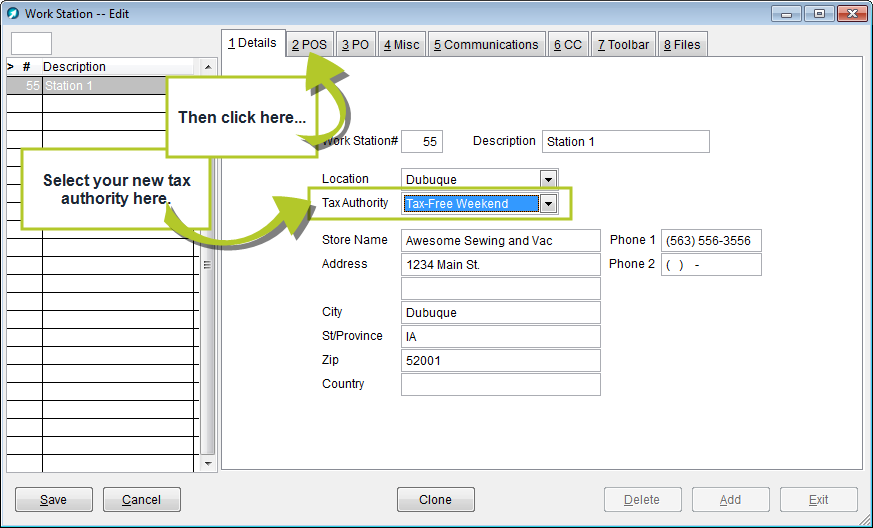
- On the Maintenance menu, point to General Maintenance and click Work Stations. The Work Station window displays.
- On the Details tab, change the value in the Tax Authority box to your new tax-free tax authority.
- On the POS tab, verify that the Default Tax Authority is set to Default to Work Station Tax Authority.
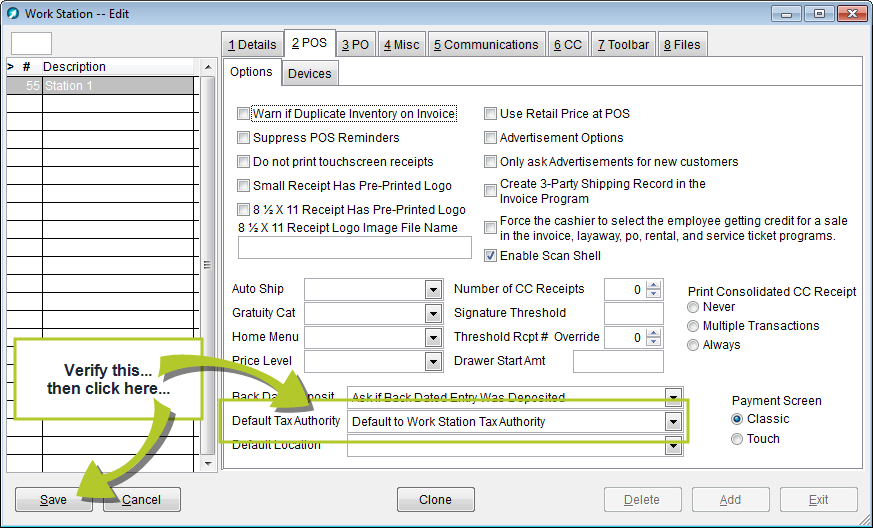
- Click Save.
- Repeat steps 8-10 for each workstation where you want to use the tax-free tax authority.
Caution: Remember to reset the tax authority on each workstation after tax free weekend.
Alternative steps
Alternatively, you can change the Tax Rate 1 value to 0.00 for the default Tax Authority on your workstation.
- On the Maintenance menu, point to General Maintenance and click Work Stations. The Work Station window displays.
- On the Details tab, verify the value in the Tax Authority box.
- Click Exit.
- On the Maintenance menu, point to General Maintenance and click Tax Authorities. The Tax Authorities window displays.
- Highlight the tax authority from step 2 in the grid.
- Enter 0.00 in the Tax Rate 1 box.
- Click Save.




 PDF Downloads